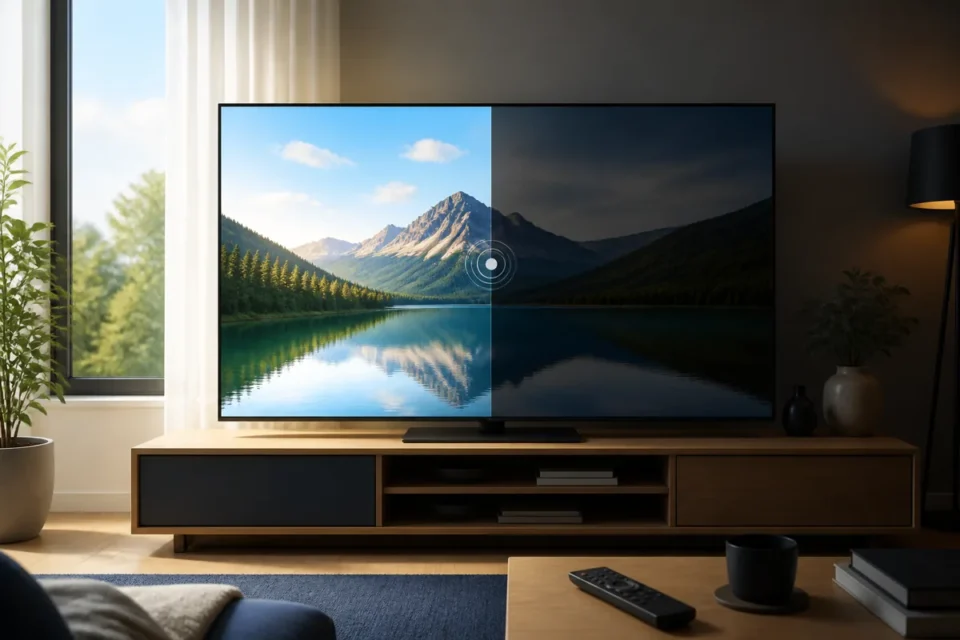
If your Samsung TV brightness keeps changing, the set is not necessarily faulty. Several features deliberately adjust the image according to room lighting, energy use or the scene on screen. HDR, Intelligent Mode and connected HDMI devices can change brightness too.
Before switching off every picture feature, notice exactly when the screen dims: when the room gets darker, during night scenes, only in Netflix, only on a console, or after several minutes. That pattern identifies the likely setting without unnecessarily degrading picture quality.
Why does a Samsung TV get darker by itself?
The most common cause is a power-saving option. Depending on the model, it may be called Brightness Optimisation, Ambient Light Detection, Eco Sensor or Energy Saving. The sensor responds to room light, while other functions react to the content being displayed.
Brightness can also change because of Intelligent Mode, Contrast Enhancer, HDR, a console’s power-saving feature or a different picture mode stored for each HDMI input. Samsung TVs may remember separate settings for broadcast TV, apps and individual ports.
8 settings to check without ruining the picture
1. Temporarily disable Brightness Optimisation
On many recent models, open All Settings → General & Privacy → Power and Energy Saving. Temporarily disable Brightness Optimisation and Brightness Reduction. Older models may place these controls under Eco Solution or Eco Sensor.
2. Check Ambient Light Detection
If the picture changes when you switch a room lamp on or off, the ambient sensor is probably active. Disable it for a test or raise the minimum brightness if your model offers that control. Make sure no object covers the sensor.
3. Test without Intelligent Mode
Intelligent Mode can adapt the picture to viewing conditions. Open its settings and disable Adaptive Picture temporarily. If the variation stops, re-enable only the features you actually want.
4. Choose a stable Picture Mode
Try Standard or Filmmaker Mode instead of Dynamic. Record your existing values first. Do not simply push brightness and contrast to maximum, because that hides the cause and may make viewing uncomfortable.
5. Check Contrast Enhancer
Contrast Enhancer can lift bright details and deepen dark scenes. Set it to Off for comparison. Some changes are caused by the panel’s backlight system and cannot be removed completely, especially between very bright and very dark scenes.
6. Compare each source separately
Test broadcast TV, a built-in app and an HDMI device. If only the console dims, review its HDR and energy settings. If only one app is affected, restart it, compare SDR and HDR content, and install available updates.
7. Restart and update the TV
Hold Power until the set restarts, or unplug it for 60 seconds. Then install available updates through Support → Software Update. Never disconnect power during installation.
8. Reset Picture settings only
If many controls have been changed, choose Reset Picture rather than resetting the whole television. This preserves apps and accounts. Photograph your current settings before resetting them.
Why does brightness change mostly with HDR?
HDR programmes contain a wider brightness range than SDR. Subtitles, sunlight or explosions may become intense while other scenes look darker. The TV may store a separate HDR picture mode too. Compare the same input with ordinary SDR content before assuming there is a fault.
On a console, review HDR calibration and temporarily disable dynamic features. Avoid copying values from an unrelated TV model: panel type, screen size and room lighting all change the result.
When should you run Samsung Picture Test?
Open Support → Device Care → Self Diagnosis → Picture Test. If the test picture stays stable while one app or HDMI device varies, the source is probably responsible. If the test itself flickers, dims abruptly or shows an uneven area, contact support with the model code.
When can changing brightness indicate a fault?
- One half of the screen becomes darker than the other.
- Brightness drops together with flickering or a restart.
- The built-in Picture Test shows the same defect.
- The display goes completely black after a few seconds while sound continues.
These symptoms may require diagnosis of the backlight or internal electronics. Do not open the television.
Official sources and related guides
Samsung explains that Eco Sensor and Energy Saving automatically adjust brightness. Use Samsung’s official Picture Test guidance to separate a setting from a picture defect.
If the screen goes completely black but sound remains, read Samsung TV sound but no picture. For an unwanted color cast, see how to fix a blue or purple tint.
Frequently asked questions
Why does my TV dim when the room gets dark?
Ambient Light Detection or Eco Sensor is probably adapting the screen to the room. Disable it temporarily to confirm.
Why do some scenes suddenly look darker?
HDR, Contrast Enhancer and dynamic backlighting can react to the scene. Compare with Picture Test and ordinary SDR content.
Should I permanently disable every Eco setting?
No. Disable them one at a time to find the responsible feature, then choose the brightness and energy-use compromise you prefer.
Next question: What should you do if the screen becomes completely black but sound still works?
What to read next
These related guides may also help: