A Samsung TV with sound but no picture is not necessarily beyond repair. The cause may be the selected source, an HDMI cable, an external device, an energy-saving setting or the screen backlight. The safest approach is to separate a signal problem from a TV problem without opening the set.
Work through the checks below in order and stop when the picture returns. Menu names vary by model and year. This guide is not a repair manual: never remove the back cover, because a television can retain dangerous voltage even after it has been unplugged.
Quick diagnosis: can you see the Samsung menu?
Press Home or Menu. If the menu appears normally, the panel and backlight are probably working; focus on the input, HDMI cable and connected device. If no menu appears even in a dark room, check the power, brightness settings and possible backlight failure.
Look at the standby light too. A normal light and working audio suggest the TV is starting. A repeating blink pattern or no response at all should be reported to Samsung support with the exact model code.
Samsung TV sound but no picture: 11 fixes in order
1. Exit the Picture Off feature
Some Samsung models can switch off the display while keeping audio on through Accessibility settings. Press any remote button other than Volume or Power, then check Accessibility to make sure Picture Off is not enabled.
2. Cold boot the TV
Hold the remote’s Power button until the TV restarts, or unplug the TV for about 60 seconds. For this test, reconnect it directly to a wall outlet rather than a questionable extension lead.
3. Select the correct source
Open Source and try TV, HDMI 1, HDMI 2 and any input you actually use. A streaming box connected to HDMI 1 cannot display while the TV is set to HDMI 2. Wait a few seconds after each change.
4. Restart the connected device
Turn off and unplug the cable box, console, player or streaming device. Reconnect it after a minute. If the Samsung home screen works and the picture disappears only on that device, the television is probably not the source of the failure.
5. Reseat and replace the HDMI cable
Disconnect both ends, inspect the connectors and reconnect them firmly. Try another HDMI port and a short known-good cable. Remove splitters and adapters during diagnosis. On supported models, HDMI Troubleshooting is available under Settings → Support → Device Care → Self Diagnosis.
6. Lower the source’s output temporarily
An unsupported resolution, refresh rate or HDR mode can cause a black screen. Connect the device to another display, choose 1080p at 60 Hz, disable HDR or variable refresh rate temporarily, and test it again on the TV.
7. Check brightness and energy settings
If the menu is barely visible, raise Brightness and Backlight in Picture settings. Temporarily disable Brightness Optimisation, Ambient Light Detection and power-saving modes. You can restore them after testing.
8. Run the built-in Picture Test
On newer sets, go to All Settings → Support → Device Care → Self Diagnosis → Picture Test. Older models may place it directly under Support and Self Diagnosis. A normal test picture points to the source or cable. A black or faulty test picture points toward the TV and may require service.
9. Update the TV software
If the menus remain visible, open Settings → Support → Software Update. Do not disconnect power during the update. Firmware can correct display bugs, but it cannot repair failed backlight hardware.
10. Disconnect every accessory
Remove HDMI, USB, antenna, soundbar and adapters. Start the television by itself, then reconnect devices one at a time. This is a reliable way to identify a faulty peripheral, cable or HDMI handshake.
11. Factory reset only as a last resort
A reset removes apps, accounts and settings. Use it only when the menus are visible and after recording important settings. The path is commonly Settings → General & Privacy → Reset.
Can the flashlight test reveal a backlight problem?
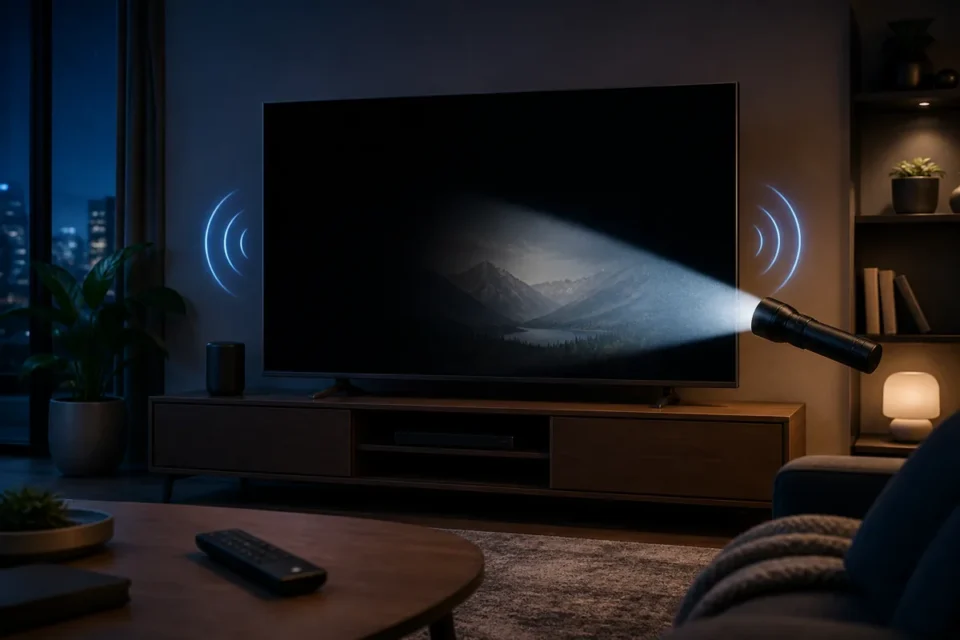
Darken the room, turn the TV on and hold a phone flashlight close to the screen without touching it. Look from several angles. If you can make out an extremely faint moving image, the TV may be producing video while the backlight is no longer illuminating it.
This is only a clue; it does not identify the failed component. A qualified technician may need to test the LED strips, power board, main board and panel-control electronics.
When should you stop and request service?
- The Samsung menu never appears even though audio works.
- A faint picture is visible only under a flashlight.
- The screen lights for one second and then goes black.
- The standby light keeps blinking or the TV repeatedly restarts.
- You notice unusual heat, smell or noise.
Unplug the set and record its model code, software version and serial number before contacting Samsung or a qualified repairer. Do not open the TV.
Official sources and related guides
The menu/source/cable isolation process follows Samsung’s official no-picture guidance. Samsung also explains Picture Test and HDMI diagnosis in its official picture troubleshooting guide.
If the picture appears but the colors look wrong, read our guide to distorted or glitchy Samsung TV colors. If brightness changes by itself, see why a Samsung TV keeps dimming.
Frequently asked questions
Why does my Samsung TV have sound but no menu?
If no TV menu appears, the issue is unlikely to be only the cable box or HDMI input. Check power and the flashlight test, then request diagnosis if the display remains black.
Can HDMI carry sound but no picture?
Yes. A bad cable, port or incompatible video setting can leave audio working while video fails. Try a known-good cable, another port and a lower output resolution.
Should I factory-reset the TV first?
No. Check the source, cable, external device and Picture Test first. A reset erases settings and cannot repair a hardware fault.
Next question: Does your Samsung TV have a blue or purple tint? Use this test to isolate the cause.
What to read next
These related guides may also help: