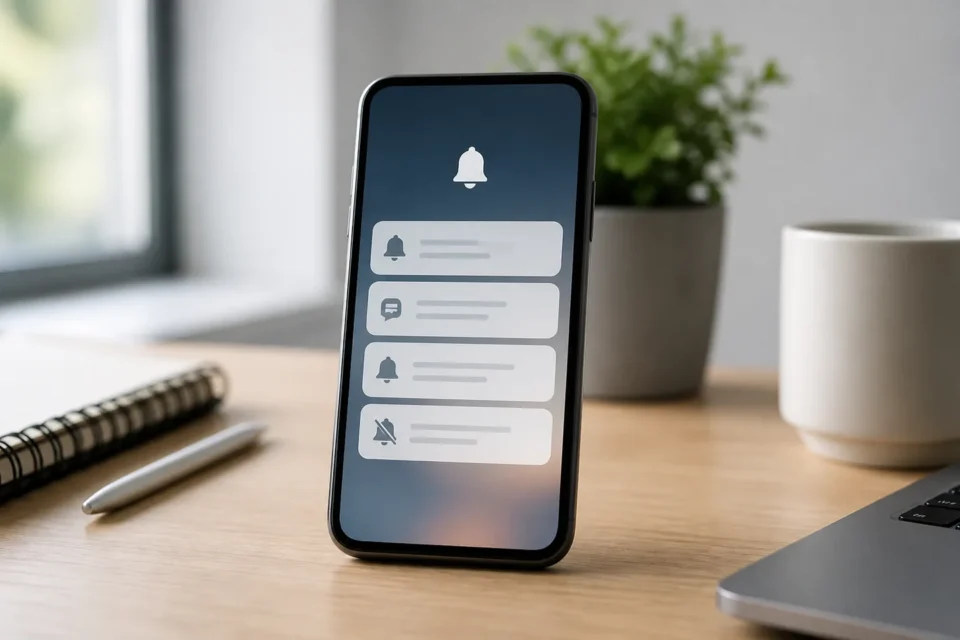
Notifications not showing are often disabled for one app, filtered by Do Not Disturb or Focus, delivered in a scheduled summary, or delayed by battery and connectivity restrictions. Use a non-urgent test message and do not alter emergency-alert settings merely to test an ordinary app.
Quick answer
Open Settings, Notifications and the affected app. Allow notifications and choose Lock Screen, banners and sounds as needed. Temporarily turn off Do Not Disturb or Focus, check scheduled summaries, restart the phone and test on a stable connection. Also inspect the app’s own account and notification choices.
Identify which part of the notification is missing
A notification absent from the Lock Screen may still be in Notification Centre. If it appears without sound, check volume, silent categories and Focus. If only one app is affected, inspect its internal settings. If everything is delayed, investigate Internet, Battery Saver, background data, date and system services.
| Symptom | Likely cause |
|---|---|
| Only one app is affected | App permission, channel or internal setting |
| Alerts appear without sound | Silent mode, silent category or volume |
| Nothing arrives at certain times | Focus, Do Not Disturb or schedule |
| Everything arrives later in a batch | Summary, battery restriction or connection |
| Missing only from Lock Screen | Display or privacy choice |
10 fixes to check
1. Open Notification Centre or history
Swipe through Notification Centre before assuming an alert never arrived. Some Android phones offer Notification history only after it has been enabled. Look for alerts classified as Silent or grouped lower in the list.
2. Allow notifications for the app
In Settings, Notifications, choose the app and enable permission. On iPhone, select Lock Screen, Notification Centre and Banners. On Android, an individual channel can be disabled even while the main app notification switch remains on.
3. Check the app’s own settings
Messaging, social and banking apps often provide separate choices for accounts, conversations and alert types. Confirm the right account and category. Do not weaken a security feature solely to increase the number of notifications.
4. Temporarily turn off silence modes
Check Do Not Disturb, Sleep, Work, Driving and other Focus or Modes. Review schedules, locations, allowed apps and people. On iPhone, Share Across Devices can activate Focus from another Apple device. Turn it off briefly for a controlled test.
5. Check sound, vibration and silent channels
An alert may arrive without making noise. Raise alert volume, leave Silent mode and choose a sound when supported. On Android, change a channel from Silent to Alerting only if you genuinely want that type to interrupt you.
6. Review Lock Screen and scheduled delivery
A privacy setting can hide content or the entire alert on the Lock Screen. On iPhone, also inspect Scheduled Summary and immediate delivery. Keep sensitive previews hidden when other people can see the phone.
7. Test Wi-Fi and mobile data
Remote notifications require a working connection. Open two websites and test both network types. Confirm the app can use mobile or background data. Repair an Internet failure before deleting an app that may be correctly configured.
8. Review battery and background restrictions
Battery Saver or app-specific restrictions can delay sync. Permit the background activity genuinely needed without granting unlimited access to every app. Avoid unknown battery-cleaner apps that aggressively terminate notification services.
9. Update and restart
Install official app and OS updates, restart the phone, then send a harmless test message from another account. Do not repeatedly use banking alerts, login codes or emergency systems as notification tests.
10. Reset only the affected setting first
Before a network or factory reset, toggle only the app notification permission and safely reconnect its account if needed. If that app alone still fails, contact its developer. If all notification sounds fail, seek device support.
Protect important and private alerts
After testing, restore notifications needed for security, banking and authentication. Government or emergency alerts use separate controls depending on the country and device; do not disable them to repair an ordinary app. Keep sensitive Lock Screen previews protected.
Frequently asked questions
Why do alerts arrive only when I open the app?
Background connection may be restricted by Battery Saver, data controls or the app itself. Check all three.
Why do notifications show but make no sound?
A silent channel, volume, Focus or missing selected tone can suppress only the sound.
Should I reinstall the app?
Not first. It can remove local data. Check permission, channels, battery, connection and updates before deleting it.
Official sources
- Google Android: control notifications
- Google Android: Modes and Do Not Disturb
- Apple: change notification settings on iPhone
- Apple: turn Do Not Disturb off
Checked on August 24, 2026. Options vary by OS version and app.
Does the app also keep crashing?
Fix the app crash first if the app cannot remain open long enough to receive alerts.
What to read next
These related guides may also help: