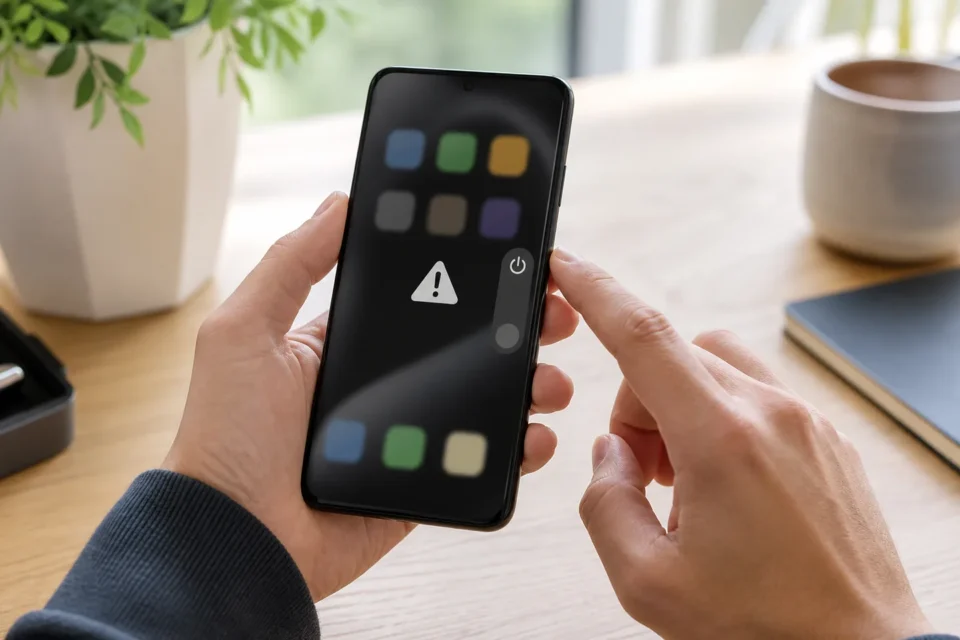
When an app keeps crashing, the phone is not necessarily broken. If one app closes, its version, temporary files or online service is usually the first place to look. If every app closes, investigate free storage, the operating system and recently installed software.
Quick answer
Close and reopen only the affected app, restart the phone, then update both the app and operating system. Check free storage. On Android, clear the cache before considering app data. Delete and reinstall only after confirming that important local content, drafts, authentication details and account data are safely synchronised or backed up.
Why does an app keep crashing?
First establish the scope. One app that started failing after its own update may contain a bug. Several apps closing on an almost-full phone may lack working space. A web-based app can also appear broken when the Internet connection is down. Record the exact action, time and message because those details are useful when contacting the developer.
| Symptom | Check first |
|---|---|
| Only one app crashes | App version, cache or service outage |
| Every app closes | Low storage, system issue or conflicting app |
| It fails only while offline | The service requires a connection |
| Crashes started after an update | Version bug or compatibility issue |
| The whole phone also restarts | System, storage, battery or hardware |
10 fixes in the safest order
1. Close and reopen the affected app
Force-close only the app that is unresponsive, then open it again. Constantly closing every app does not necessarily improve performance and can make the next launch slower. If the issue disappears, a temporary stuck process was the likely cause.
2. Test the Internet connection
Maps, video, messaging and banking apps depend on stable Internet. Open two websites and test Wi-Fi and mobile data. If several online services fail, repair the connection first instead of deleting an app that may be working correctly.
3. Restart the phone
A normal restart frees temporary resources and reloads system components. Power the phone off and on, open the affected app before other heavy apps, and repeat the exact action that failed. A factory reset is not an appropriate early step.
4. Update the app from its official store
Open Google Play or the App Store and install the available update. Release notes may mention stability fixes. Do not download an unknown APK, profile or modified copy from a website promising an instant repair; it can introduce malware or account theft.
5. Update Android or iOS
A new app release may depend on system components missing from an old OS. Back up important information, connect power and install a stable update offered in Settings. Also confirm that the app still supports the phone model and OS version.
6. Free storage carefully
Keep several gigabytes free where practical. Remove identified downloads, backed-up videos and large files you no longer need. Do not delete system folders. Completely full storage can prevent an app from writing databases or temporary files and cause repeated crashes.
7. Clear cache first on Android
In the app information screen, choose Clear cache when available. Cached files are temporary and will be rebuilt. Do not choose Clear storage or Clear data without understanding the impact, because local downloads, sessions and settings can disappear.
8. Check permissions, time and battery restrictions
Give the app only the permissions required for its function. Enable automatic date and time. If it fails mainly in the background, check whether Battery Saver or app-specific background restrictions are stopping its work rather than assuming the app itself is damaged.
9. Use Android Safe Mode when many apps fail
Safe Mode temporarily disables downloaded apps. The startup method differs by manufacturer, so use the official device instructions. If the crashes stop, remove recently installed apps one at a time and restart normally after each removal to identify the conflict.
10. Reinstall only after protecting data
Deleting an app can remove local content. Confirm account sync, drafts, downloads, backups and recovery codes before proceeding. Reinstall only from the official store. If the same app still fails while others work, contact its developer with the device, versions and reproduction steps.
Understand what will be erased
Clear cache, clear storage and delete app are different operations. The last two can erase local information or sign you out. Do not reset the whole phone for one failing app. Before removing a banking or authenticator app, confirm the exact account-recovery process.
Frequently asked questions
Why does the app crash immediately at launch?
A corrupt temporary file, incompatible version or service outage can block startup. Begin with updates, a restart and the official service status.
Should I install a phone-cleaner app?
No. Android and iOS already manage memory. Unknown cleaners can display misleading warnings, remove useful files or collect personal data.
How can I tell whether everyone is affected?
Check the service’s official status and recent store reviews, but do not treat one social post as proof. Failure across several devices at the same time suggests a service issue.
Official sources
- Google Android: fix an installed app that is not working
- Google Android: find problem apps with Safe Mode
- Apple: app closes unexpectedly or will not open
Checked on August 24, 2026. Menu names vary by phone and OS version.
Does the app mainly fail because it is offline?
Check Wi-Fi connected with no Internet before erasing or reinstalling the app.
What to read next
These related guides may also help: