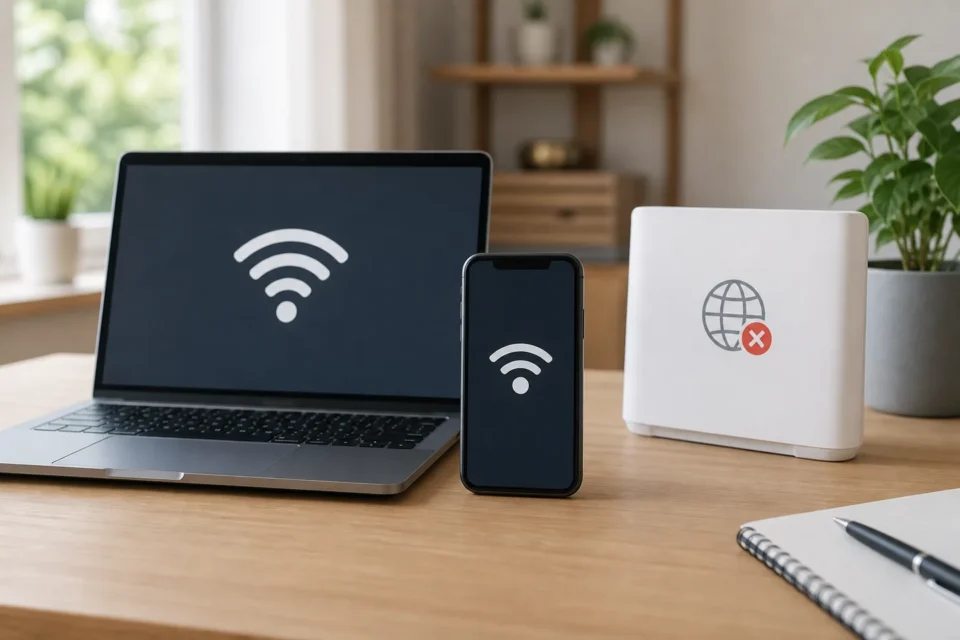
When Wi-Fi is connected but no Internet is available, the device can reach the local router while the router may not reach the provider. Test a second device first because that single result tells you whether to investigate the device or the whole network.
Quick answer
If every device fails, power-cycle the modem and router by unplugging them for thirty seconds, then check the ISP status. If one device fails, toggle Wi-Fi, forget the network and reconnect with the correct password.
Wi-Fi connected with no Internet: isolate the fault
Open two websites on a second device. One affected device suggests its settings, VPN, DNS or driver. Every device failing suggests the router, modem or ISP. On public Wi-Fi, a sign-in page may still need approval. The router Internet light is another useful clue.
| What you see | First place to investigate |
|---|---|
| Only one phone or computer fails | Device settings, VPN, DNS or driver |
| Every device fails | Modem, router, cable or ISP |
| Public Wi-Fi connects but nothing loads | Captive portal not completed |
| Only some websites fail | Service outage, DNS, filter or wrong date |
| Ethernet works normally | Local Wi-Fi radio or configuration |
10 useful checks
1. Test a second device
Connect another phone or computer to the same Wi-Fi and open two different websites. This separates a home-network failure from a problem on the original device. Two sites and one app are enough; repeated reloads add little diagnostic value.
2. Read the Internet light and check cables
Look at the modem or router lights before moving cables. A red or unlit Internet indicator can mean the line is down. Gently seat an obviously loose cable, but do not bend or repeatedly unplug a delicate fibre connector.
3. Restart without pressing Reset
Unplug the modem and router from power for thirty seconds. Reconnect the modem first, wait for it to stabilise, then reconnect the router. The recessed Reset button usually wipes factory settings, so it is not the same as a normal restart.
4. Toggle Wi-Fi on the affected device
Turn Wi-Fi off for a few seconds and back on. This renews the local connection without deleting settings. Confirm Airplane Mode is off and that the chosen network is yours, especially where several routers have similar names.
5. Forget and rejoin the network
When only one device remains stuck, forget that network and join it again using the exact password. This removes only the saved details for that network. Do not proceed unless you know the current Wi-Fi password.
6. Complete a public Wi-Fi sign-in page
At a hotel, train or café, open a browser and visit an ordinary page to trigger the terms screen. Avoid sensitive activity on an unknown network. If the portal will not appear, pause the VPN only while authenticating, then restore it.
7. Temporarily test without VPN or Private DNS
A misconfigured VPN, blocker or private DNS service can stop websites resolving. Disable it only for a controlled test. If Internet returns, repair that service instead of leaving the device permanently less protected.
8. Check the date, time and updates
A badly incorrect clock can invalidate secure certificates. Enable automatic date and time. Install system updates, and on Windows obtain network-driver updates through Windows Update or the device manufacturer rather than an unknown download site.
9. Check the ISP service status
Using mobile data or another connection, open the provider’s official status page. A neighbourhood outage cannot be fixed by changing a Wi-Fi password. Record the start time and router-light pattern if you need support.
10. Reset device network settings only last
If one device still fails, its network reset may help but often removes saved Wi-Fi networks, passwords, VPNs and related configuration. Record them first. If all devices fail, call the ISP before factory-resetting the router.
Do not accidentally factory-reset the router
Do not press the router’s physical Reset button unless support tells you to and you have the setup credentials. A factory reset can remove the network name, password, Internet and phone configuration. A normal power cycle only disconnects the electricity and reconnects it.
Frequently asked questions
Why does the Wi-Fi icon remain visible?
It shows a link to the local router, not proof that the router reaches the Internet. The home network can remain visible during an ISP outage.
Why does only one device have no Internet?
The router probably works. Check the failing device’s VPN, DNS, clock, driver and saved network profile.
Must I change DNS servers?
No. It is a targeted test when names fail to resolve. Use a reputable service and keep automatic settings when they work.
Official sources
- Google Android: fix Wi-Fi connection problems
- Apple: if iPhone or iPad cannot connect to Wi-Fi
- Microsoft: Wi-Fi connected but no Internet
Checked on August 23, 2026. Lights and menu names vary by router and device.
What if Wi-Fi works but is very slow?
Use the slow Wi-Fi checklist before paying for a different broadband plan.
What to read next
These related guides may also help: