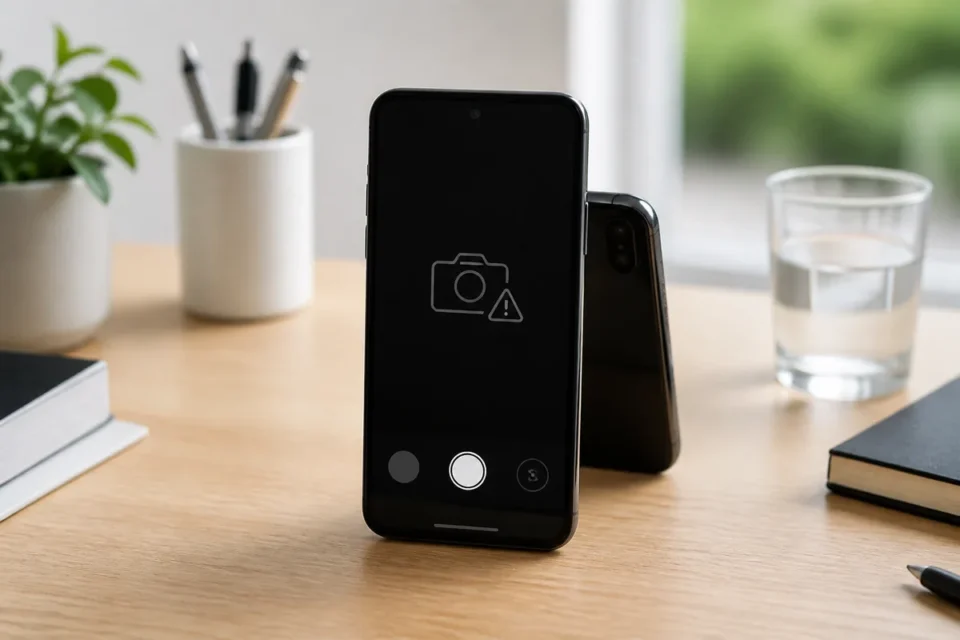
Quick answer: when your phone camera shows a black screen, close the app, restart the phone, remove the case, test both lenses and review camera permissions. If every camera app and both lenses fail after a drop or liquid exposure, professional service is more likely to be needed.
The cause may be a frozen app, a denied permission, full storage, a software conflict or damaged hardware. Work through the reversible checks first. After each step, reopen the camera and test one photo and a short video. Avoid a factory reset until the simpler tests and an up-to-date backup are complete.
Identify the cause before changing settings
These quick comparisons show whether the fault affects one app, one lens or the whole camera system. Record exactly what works. That evidence prevents random changes and gives a repair technician useful information if service becomes necessary.
- Test the built-in Camera app and then a trusted second app that has camera access.
- Switch between rear and front cameras, then compare photo and video modes.
- Remove the case, lens cover and magnetic accessories before testing again.
- Recall whether the issue began after an update, new app, drop, moisture exposure or overheating.
Phone camera black screen: 10 fixes to try
1. Fully close the camera app
Open recent apps, dismiss the camera and launch it again. Close video-call, social and scanning apps that may still hold the camera service in the background. A stuck session can leave the preview black even though the sensor is healthy.
2. Restart the phone
A normal restart releases camera services and clears many temporary conflicts without deleting data. Power the phone off, wait briefly, turn it on and test the camera before opening other apps.
3. Remove accessories and clean the lens
Take off the case, lens protector and magnetic mount. Wipe each lens gently with a clean, dry microfiber cloth. Never use a sharp object or aggressive liquid. A badly aligned accessory can cover a lens or interfere with stabilization.
4. Test each lens and shooting mode
Compare front and rear cameras as well as photo and video. One working lens and one black lens suggest a localized issue. If photos work but video fails, check free storage and resolution. Note shaking, clicking or an inability to focus.
5. Review camera permissions
On iPhone: open Settings → Privacy & Security → Camera and check the affected app.
On Android: open Settings → Apps → the affected app → Permissions → Camera. Allow access while using the app if that option is available. On Android 12 or later, also check the global Camera access control in Quick Settings; availability depends on the phone. Menu names vary by manufacturer. Grant permission only to apps you trust.
6. Create free storage space
If the preview works but photos or videos will not save, check free storage. Back up important files and open a few copied files before deleting the originals. Deletions may also affect a synced photo library. Empty Recently Deleted or the bin only after checking your backup: this can remove your recovery option. See our guide to freeing space when phone storage is full. Deleting photos should not be the first test when only the camera preview is black.
7. Update the app and operating system
Install official camera-app and system updates with adequate battery and a reliable connection. Updates can repair known driver and compatibility problems. Do not install unknown APK files that claim to unlock or repair the camera.
8. Clear only the Android camera cache
Open App info, Storage and cache, then choose Clear cache. Start with cache rather than Clear storage or data. Menu names differ by manufacturer. iPhone users should skip this Android-only step.
9. Test Android safe mode
Safe mode temporarily disables downloaded apps. If the camera works there, remove recently installed camera, flashlight, security or overlay apps one at a time. Use the device maker’s official instructions because the safe-mode shortcut varies.
10. Get a diagnosis before resetting
If the checks fail, give the manufacturer’s support team your test results. Do not automatically erase the phone. Resetting settings and erasing all content are different operations, with effects that vary by model. Before following a reset recommended by support, verify your backup and make sure you can access your account. A reset cannot repair a damaged camera sensor.
What not to do
Do not hit the phone, insert tools around the lenses, blow high-pressure air into the module or install “camera repair” apps from unknown sites. Let an overheated phone cool naturally. After liquid exposure, power it off and follow the manufacturer’s instructions rather than heating it.
When the phone needs service
Contact the manufacturer or a qualified repair provider if every app and both lenses remain black, safe mode changes nothing, or the failure followed impact or moisture. Strong shaking, repeated clicking or permanent focus failure may point to a stabilization fault. Check warranty coverage before anyone opens the phone.
Frequently asked questions
Why is the camera black in only one app?
That app may lack permission, be outdated or conflict with another app using the camera. Close other apps, confirm permission and install its official update.
Does a black screen prove the camera is broken?
No. Software freezes are common. Hardware becomes more likely when every lens fails in multiple apps, especially after a drop or liquid exposure.
Should I erase the whole phone?
Not first. Close the app, restart, inspect permissions and clear only the Android cache. Make a backup before any broader reset.
Official sources
- Google Pixel: troubleshoot the camera
- Apple: camera or flash not working
- Android: global camera access
- Apple: app camera permissions on iPhone
- Android: permissions for an individual app
Related guide: how to fix an app that keeps crashing on Android or iPhone
What to read next
These related guides may also help: