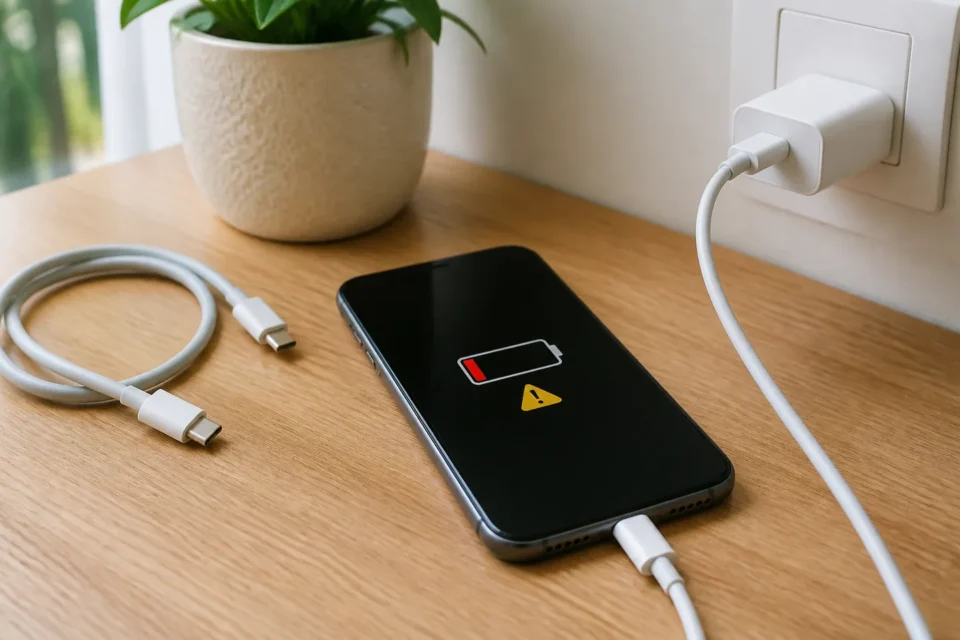
A phone plugged in but not charging may be blocked by the outlet, cable, adapter, debris in the port or excessive temperature. Start with external parts and never insert metal into the connector. Stop charging immediately if the battery swells or you notice unusual heat, smell, liquid or sparking.
Quick answer
Try another wall outlet, then a compatible cable and adapter that are known to work. Seat each connector firmly, remove a case that interferes and follow your model’s charging time before restarting (see step 6). Restart it. Inspect the port under a light without scraping it and seek authorised service if reliable chargers still fail.
How to isolate a charging failure
Test one component at a time. If another device also fails with the same charger set, suspect the cable or adapter. If the phone works with a second cable, the first cable is the likely cause. Stopping at 80 percent can be intentional battery protection or heat management. A black display can also hide a phone that is actually charging.
| What you see | Check first |
|---|---|
| No icon with several known-good chargers | Port, battery, screen or phone hardware |
| Charging changes when the cable moves | Damaged cable or connector |
| Charging stops near 80 percent | Charge limit or temperature |
| Only wireless charging fails | Alignment, case or incompatible pad |
| Unsupported accessory warning | Damaged or incompatible cable or adapter |
10 checks in the safest order
1. Test the wall outlet
Plug a lamp or another simple device into the same outlet, then try a different wall outlet without a power strip or USB hub. A switched outlet or failing extension lead can make a healthy phone and charger appear broken.
2. Inspect cable and adapter separately
Look for split insulation, bent prongs, loose connectors, burn marks or unusual heat. Do not use damaged accessories. Test one known-good compatible cable and then one adapter so that you can identify the failed component instead of replacing everything.
3. Confirm power and compatibility
Some computer ports and older adapters supply too little power, especially while the screen is active. Use the manufacturer’s recommended specification and a cable rated for the required power. An accessory warning often points to damage, insufficient power or incompatibility.
4. Remove the case and reconnect firmly
A thick or poorly fitted case can stop a plug seating fully or misalign wireless coils. Remove it temporarily, connect the cable directly to the phone and adapter, and wait up to one minute for the battery symbol.
5. Inspect the port without inserting objects
Switch the phone off and inspect the connector with a light. Do not insert a pin, cotton swab or paper, and avoid liquid, compressed air and external heat. Unplug the cable if a moisture warning appears. For iPhone, Apple recommends drying in an area with airflow: wait at least thirty minutes before retrying, and allow up to twenty-four hours if the alert returns. Ask a professional to deal with a damaged port or stuck debris.
6. Allow the charging time specified for your model
A completely flat battery may show nothing for several minutes. Using reliable compatible accessories, Apple recommends charging for thirty minutes before continuing its checks. For Pixel, Google recommends an initial ten-minute charge and longer when the battery is very low. Avoid repeatedly trying to start the phone while waiting. These checks assume a dry port and no abnormal heat.
7. Restart and distinguish a blank screen from charging failure
If the display responds, restart normally. On iPhone 8 or later, including second-generation SE or later: briefly press volume up, then volume down, then hold the side button until the Apple logo appears. Older iPhones use another sequence. For a Pixel with a blank screen, Google says to hold Power for about thirty-five seconds, wait two minutes and call the phone. If it rings but shows no picture, seek display service. Check the manufacturer’s instructions for other Android models.
8. Let the phone cool naturally
Software can slow or stop charging when the device is too warm. Unplug it, remove the case and place it in a dry, room-temperature location away from sunlight. Never use a refrigerator or freezer because condensation can cause damage.
9. Check charge limits and wireless alignment
Some phones intentionally pause near 80 percent or use optimised charging. Read the battery settings before treating this as failure. For wireless charging, centre the coils, remove metal objects and use an officially compatible charger.
10. Arrange a battery and port diagnosis
If several reliable outlets, cables and adapters fail, the port, battery, display or charging circuit may need service. Back up data while the phone still turns on and contact the manufacturer or authorised repair provider without opening the battery yourself.
Stop immediately if you see these signs
Disconnect the phone if it swells, smells unusual, becomes extremely hot, shows liquid damage or the cable sparks. Do not press or puncture a deformed battery. Move it away from flammable material when safe and follow the manufacturer’s instructions for professional assessment.
Frequently asked questions
Why does charging stop at 80 percent?
A configured charge limit, optimised charging or temperature protection may pause it. Check settings and let the phone cool.
Can I clean the port with a needle?
No. Metal can bend contacts or cause a short circuit. Use the manufacturer’s method or professional cleaning.
Can a data cable still be bad at charging?
Yes. It may transfer data while power delivery is weak or unstable. Test a known-good compatible charging cable.
Official sources
- Apple: iPhone will not charge
- Apple: liquid detected in the connector
- Google Pixel: phone will not charge or turn on
- Google Pixel: liquid or debris warning in the USB port
- Apple: wirelessly charge an iPhone
Procedures checked on October 6, 2026. Button sequences and compatible accessories depend on the model.
What if charging still fails?
Record the outlets, cables and adapters you tested and the exact warning on screen. If every test fails, back up any accessible data and give these observations to the repair provider. This helps distinguish faulty accessories from a problem inside the phone.
Does the phone become hot while charging?
Check the causes of phone overheating before continuing to charge it.
What to read next
Your phone charges, but its battery drains quickly: what should you check?