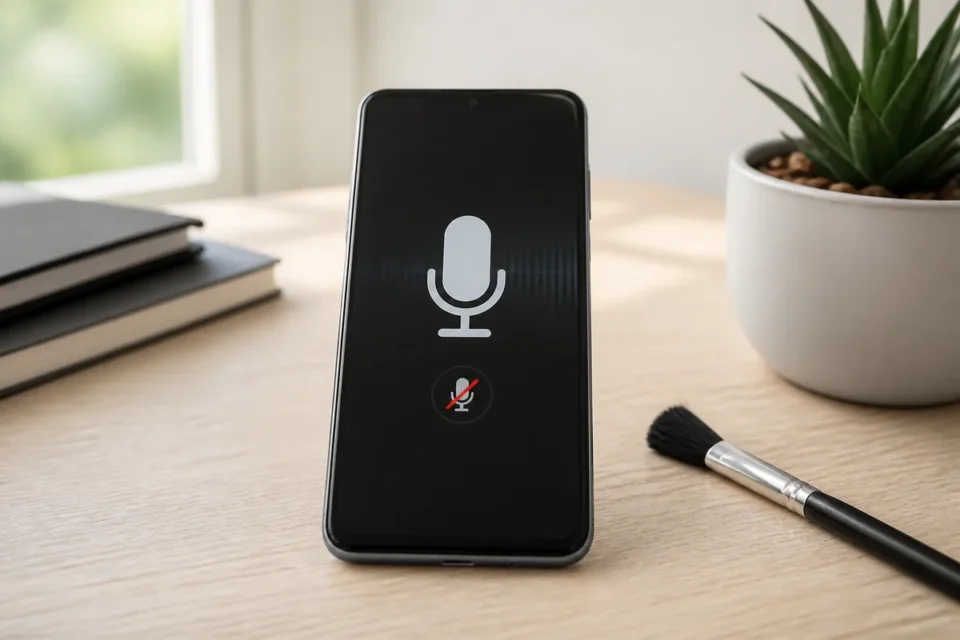
Quick answer: if your phone microphone is not working, disconnect Bluetooth devices, remove the case, test a voice memo and video, restart, and check the app’s Microphone permission. Never push a pin into a microphone opening.
Most phones contain several microphones. A normal call may use a different one from speakerphone or video recording. Comparing several uses is therefore more useful than repeatedly calling someone. The following process moves from safe, reversible checks to the point where professional diagnostics make sense.
Find the exact situation in which sound fails
Create short recordings that contain no private conversation. Play them through the speaker and, if needed, trusted headphones. This distinguishes microphone failure from a speaker, network or single-app problem.
- Make one normal call and briefly compare speakerphone, without repeatedly calling people.
- Record a voice memo while speaking near the bottom of the phone.
- Record video with both front and rear cameras while speaking normally.
- Test the affected app and a second trusted app with equivalent permissions.
Phone microphone not working: 10 fixes
1. Disconnect Bluetooth and wired accessories
Audio may be routed to a headset, car or speaker microphone. Temporarily switch Bluetooth off, unplug accessories and record a new voice memo. During a call, verify which audio device is selected before changing other settings.
2. Remove the case and inspect openings
Take off the case and any film covering the edges. Locate microphone openings without inserting anything. Remove only loose surface dust with a very soft, dry brush. A poorly cut case can muffle speech substantially.
3. Compare voice memo, video and call results
A clear memo but silent app points to permission or app settings. A silent memo but clear video may isolate one microphone. If every test is silent, first review Bluetooth routing, privacy controls and restart the phone.
4. Restart the phone
Restarting closes stuck audio services and releases a microphone held by another app. Power off normally, start again and run one simple recording before opening other apps. This does not erase data.
5. Check Microphone permission
On iPhone: open Settings → Privacy & Security → Microphone and check the affected app. If it already has permission or is missing from the list, contact its developer.
On Android: open Settings → Apps → the affected app → Permissions → Microphone. Choose access while using the app if that option is available. Menu names vary by manufacturer.
On Android 12 or later, also check global microphone access in Quick Settings when available. An individual app permission is not enough if this global control is off. Only grant access to trusted apps, then make another short test recording.
6. Check mute and selected audio mode
During calls, ensure Mute is off and the correct device is selected. Video-conference apps also have their own mute control. Voice isolation can be useful, but switch to a standard mode temporarily while diagnosing unexpected silence.
7. Update the app and operating system
Install official updates for the calling or recording app and the phone system, then restart. A partially updated setup can break one app. Avoid modified versions from unofficial stores because they may create both security and audio problems.
8. Test another app and network
If voice memos are clear but calls sound bad, compare Wi-Fi calling and mobile coverage where appropriate. Choppy or delayed audio may be a network issue rather than a failed microphone. Keep test calls brief and purposeful.
9. Try Android safe mode
When several apps lose microphone access, use the manufacturer’s official safe-mode procedure. If recordings work there, remove recent cleaning, calling, recording or audio-control apps one at a time, testing after each removal.
10. Back up and seek diagnostics
If all recordings remain silent, back up important data and use the manufacturer’s diagnostic or repair channel. Perform a full reset only on official advice: software erasure cannot repair a component damaged by impact or liquid.
Unsafe cleaning methods to avoid
Never put a pin, paper clip or toothpick into a microphone opening. Avoid liquid and forceful compressed air, which can move debris deeper or damage a membrane. After liquid exposure, turn the device off and follow the manufacturer’s instructions.
When the microphone needs service
Service is likely if voice memos, front and rear videos, normal calls and speakerphone all remain silent after restart, Bluetooth disconnection and permission checks. Seek help promptly after impact or liquid. For an urgent call, use a known-good headset or another phone; never postpone an emergency call to continue troubleshooting.
Frequently asked questions
Why does the mic work in video but not calls?
The phone may use another microphone, the network may be poor or call audio may be routed to Bluetooth. Compare normal call, speakerphone and voice memo.
Why can only one app not hear me?
Its Microphone permission may be disabled or the app may be stuck. Check permission, fully close it and install its official update.
Can I clean the hole with a pin?
No. A pin can puncture protective mesh or a membrane. Remove the case and clean only the surface with a soft, dry brush.
Official sources
Related guide: Bluetooth connected but no sound: restore the correct audio output
Read next
Continue troubleshooting according to the symptom: