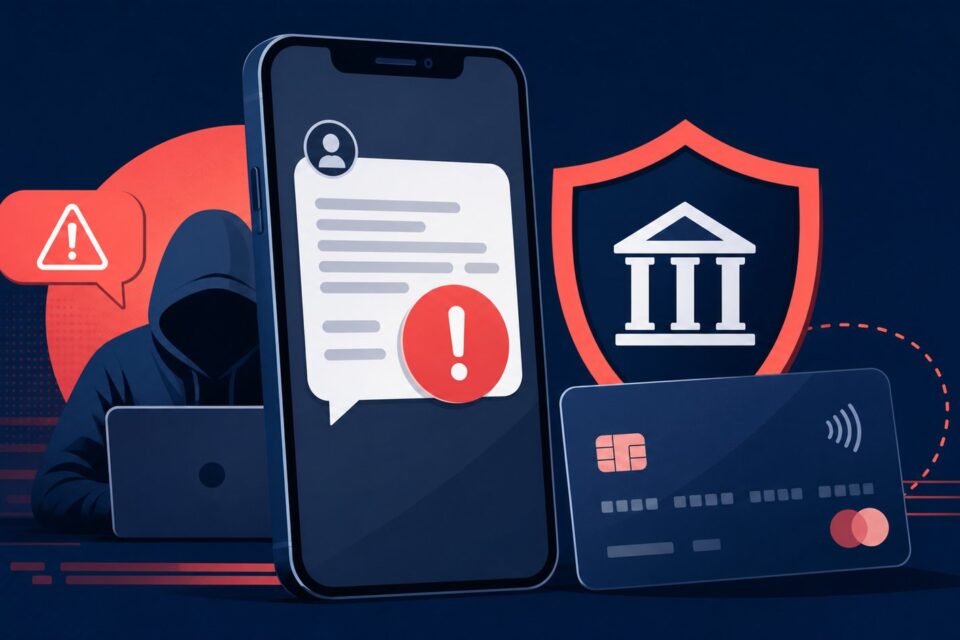
A tech support scam tries to frighten you with a supposed virus, blocked screen or unexpected invoice. Its goal is to make you call an impostor, install remote-control software or pay for a repair you never needed.
Quick answer
A genuine security message does not tell you to urgently call a number shown inside a web page. A legitimate technician will not demand gift cards, cryptocurrency or a bank transfer to “protect” your money.
Why this trap works
The approach may begin with a full-screen page, phone call, search advertisement or renewal email. The scammer borrows a well-known company name, speaks urgently and claims that data loss or a charge is imminent.
The safest method is to slow down, leave the channel creating pressure and return through a known source. An independent check usually takes far less time than recovering an account or disputing a payment.
Step-by-step checks
-
Do not call a number displayed inside a warning pop-up and do not use its diagnostic button.
-
Try to close the tab or browser. If it appears stuck, close the application through the operating system or restart the device.
-
Do not install remote-access software at the request of an unexpected contact.
-
Never disclose a password, banking code or multi-factor authentication code.
-
To verify a subscription, open your provider account directly and check the bank statement.
-
Update the operating system and security software, then run a scan with a trusted tool.
-
If help is genuinely needed, use the manufacturer’s official contact details or a professional you already trust.
-
Save screenshots, numbers, receipts and software names before reporting the scam.
Fake tech support: close a frozen warning
Use the browser or operating system controls, not buttons inside the threatening page. If practical, photograph the warning and its address before closing it, without calling the number shown.
- On Windows: first try to close the browser normally. If it is unresponsive, press Ctrl + Shift + Esc to open Task Manager, select the browser and choose End task. Do not terminate unrelated processes at random.
- On a Mac: first try Command + Q. If the app does not respond, press Option + Command + Esc, select the browser and choose Force Quit.
- When reopening: do not restore the warning’s tabs. If it returns, stop interacting with it and seek help through the browser maker’s official website or a professional you already trust.
Warning: force-quitting may lose an unsaved form. Closing a window is not enough if you installed software or allowed remote control. On a work computer, also notify your IT team.
What to do after a click, entry or payment
Your response should match what actually happened. An alarming page alone does not establish that every account has been compromised.
- You only saw the warning: close it without calling the number. Keep the system and security protection updated. If warnings persist, have the browser checked and scan with an official security tool, not software offered by the page.
- You disclosed a password: use a trusted device to change it on the real service and wherever you reused it. Review sign-ins and end unfamiliar sessions where the provider offers that option.
- You allowed remote access: disconnect Wi-Fi or the network cable to interrupt it. Record the software name, time and actions requested. After preserving evidence, remove software installed at the scammer’s request and have the device checked. Get advice before a reset that could erase your files.
- You paid or disclosed banking details: promptly contact the bank through a known channel. Ask about blocking further use or disputing a payment, without assuming reimbursement is guaranteed.
Keep messages and receipts. Be wary of another caller promising to recover the money for a fee: independently verify that contact too.
Frequently asked questions
Does a full-screen warning mean Windows is infected?
Not necessarily. A web page can imitate a blocked computer. Close the browser without calling the displayed number.
Should I pay if the person performed work?
Do not pay a contact reached through a fraudulent alert. Contact the bank if a payment has already been made.
Can I keep the remote-access software?
Remove it unless you knowingly need it, and check that permanent unattended access was not enabled.
Bottom line: a fake warning can be closed, but remote access also calls for checking the device and accounts.
Official sources and verification
Checked and expanded on 18 October 2026. These official resources support the closure and recovery steps; labels can vary with the operating system version.
- FTC: spotting and reporting tech support scams
- Cybermalveillance.gouv.fr: responding to fake technical support
- Microsoft: prevention and recovery after tech support scams
- Microsoft: Windows keyboard shortcuts
- Apple: quitting an unresponsive app
If the scammer also impersonates your bank
A fake technician may redirect you to another impostor. Use our checks for a fake card-blocking phone number before calling a number supplied in a message.