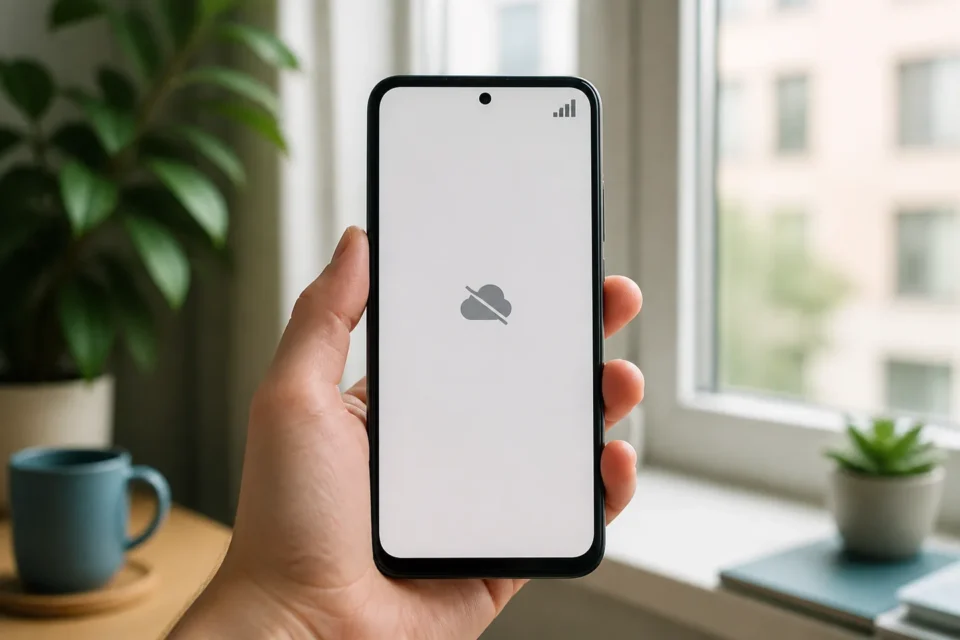
When mobile data is on but not working, check coverage, your plan and the selected SIM before changing advanced settings. A local outage, a temporary network registration problem or the wrong data line is more common than a damaged phone.
Quick answer
Turn Airplane Mode on for ten seconds, turn it off, then restart the phone. Confirm that the correct SIM is selected for cellular data, the plan still has an allowance and a 4G, 5G, LTE or H icon appears. Test a second website and app so that one failed service is not mistaken for a network failure.
How to isolate a mobile data problem
Switch Wi-Fi off before testing. If only one app fails, mobile Internet probably works and that app may be down or blocked from using cellular data. If every service fails on one phone, investigate the SIM and settings. If several people on the same carrier fail in the same place, coverage or a carrier outage is more likely.
| What you see | Likely cause |
|---|---|
| Calls work but no website loads | Data line disabled, allowance exhausted or network setting |
| Only one app fails | App outage, cellular permission or cache |
| Two SIMs are installed | Wrong SIM selected for data |
| It fails only abroad | Roaming disabled, unsupported plan or partner network |
| Other customers nearby also fail | Carrier outage or weak local coverage |
10 fixes in the safest order
1. Switch Wi-Fi off and test again
A phone can remain connected to Wi-Fi that has no Internet, making cellular data look broken. Disable Wi-Fi completely, wait a few seconds and open a fresh website. Look for 4G, 5G, LTE or H beside the signal bars.
2. Use Airplane Mode for ten seconds
Airplane Mode disconnects and re-registers the phone on the mobile network. Enable it for about ten seconds, disable it and wait for service. This safe step often clears a registration problem after travelling, entering a tunnel or moving between towers.
3. Restart the phone
A normal restart closes stuck network processes and reloads the SIM. Power the device off, wait briefly and start it again. Do not factory-reset the phone at this stage; that is disruptive and rarely justified before basic carrier checks.
4. Check the plan and carrier status
Using another Internet connection, open the carrier’s official account page. Check the data allowance, billing status, temporary restrictions and reported outages. Strong signal bars do not prove that the account is authorised to pass mobile data.
5. Select the correct data SIM
On Dual SIM phones, only one line normally supplies cellular data at a time. Open the SIM or Mobile Network settings and verify the chosen line. Make sure that line is enabled and actually includes the data plan you expect to use.
6. Try 4G or LTE instead of 5G
A weak indoor 5G signal can perform worse than stable LTE. Temporarily select 4G/LTE or an automatic mode and test again. If service returns, keep the stable setting until coverage improves. There is no need to edit the APN for this test.
7. Move to a better coverage area
Go near a window or leave a basement, parking garage or heavily insulated building. Signal bars measure the radio connection, not usable Internet speed. If data returns a short distance away, local coverage is the strongest explanation.
8. Check roaming carefully
Abroad, data roaming may need to be enabled and included in the plan. Read the carrier’s current prices first to avoid charges. Then allow automatic partner-network selection. Do not repeatedly select random networks when the account may not permit roaming.
9. Compare the APN with the carrier’s instructions
An Access Point Name must match the carrier’s official settings. Compare each field with its support page. Never paste an APN from an unknown forum, and do not delete an eSIM unless you already have valid reactivation instructions.
10. Reset network settings only as a last software step
A network reset can fix corrupt configuration, but it commonly removes saved Wi-Fi passwords, VPNs and APN details. Record what you need first. If it still fails, contact the carrier with the location, time and results of each test.
Actions that can make the problem worse
Do not delete an eSIM, invent APN values or factory-reset the entire phone as a first response. Those actions remove useful evidence and may require carrier assistance. Do not enable roaming until you understand the price. If the SIM fails in every compatible device, ask the carrier to verify the line before replacing hardware.
Frequently asked questions
Why does 5G show when the Internet does not work?
The icon confirms radio registration, not a working data allowance or route to the Internet. An outage, account block or APN problem can exist while 5G remains visible.
Should I replace the SIM card?
Not first. If safe and practical, test it in a compatible phone. When it fails everywhere, let the carrier check provisioning before issuing a replacement.
Does Reset Network Settings delete photos?
It normally does not delete photos, but it can remove Wi-Fi passwords, VPNs and mobile-network settings. Read the exact warning on your device before proceeding.
Official sources
- Google Android: fix Internet connection problems
- Google Android: check your mobile plan
- Apple: use 5G with iPhone
- Apple: Dual SIM and eSIM
Checked on August 23, 2026. Menu names and available options vary by phone and carrier.
Does the phone say Emergency calls only?
Use the Emergency calls only guide to check the SIM, carrier and network registration.
What to read next
These related guides may also help: