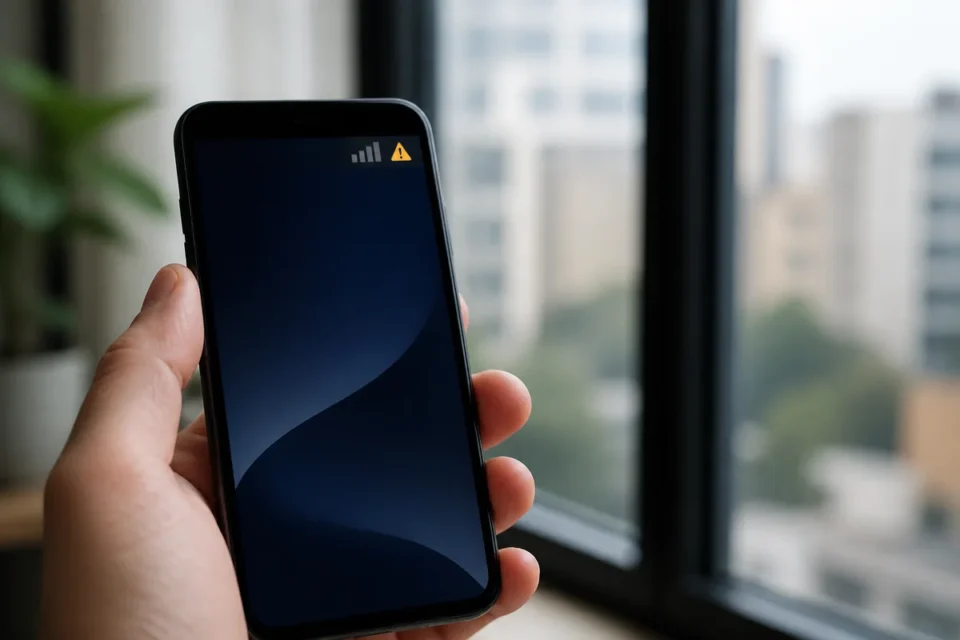
If your phone says “Emergency calls only,” it cannot register normally on your carrier’s mobile network. The cause may be an outage, weak coverage, airplane mode, a disabled SIM or eSIM, a carrier-account issue, or less commonly the phone itself. Work through the checks below in order. A factory reset is rarely the right first move.
Quick answer
- Compare with another phone on the same carrier and in the same place.
- Turn airplane mode on for 15 seconds, then restart the device.
- Make sure the intended SIM or eSIM line is enabled.
- Never call an emergency number just to test the connection.
Note: menu names can vary slightly by phone brand and software version.
What does “Emergency calls only” mean?
The phone may detect a network capable of routing an emergency call, but it is not connected normally to your own carrier. On iPhone, “SOS,” “No Service,” and “Searching” describe a related condition. The message does not automatically mean that the SIM is broken or that the phone needs replacing.
Run this quick diagnosis first
| What you observe | Most likely direction |
|---|---|
| Several phones on the same carrier fail | Local outage or coverage |
| Service returns in another location | Weak indoor or local signal |
| The issue started after travel | Roaming or network selection |
| Only one SIM fails | SIM, eSIM, activation or account |
| No SIM works in this phone | Settings, software or hardware |
9 fixes to try in the right order
1. Check coverage and carrier outages
Move near a window or step outside. If possible, compare with another device using the same carrier. On Wi-Fi, check the carrier’s official status or support page. A network-wide outage cannot be fixed from your handset.
2. Use airplane mode for 15 seconds
Turn airplane mode on, wait at least 15 seconds, and turn it off. This forces a fresh network search without deleting personal data. Give the phone another minute to reconnect.
3. Restart the phone
A restart reloads the cellular modem and can clear a temporary problem after an update, a long signal loss, or a move between coverage areas.
4. Check the selected SIM or eSIM
Open Mobile Network, Cellular, or SIM Manager and confirm that the correct line is enabled. On dual-SIM phones, check which line handles calls and mobile data. Do not delete an eSIM unless you have the carrier’s reactivation instructions or QR code.
5. Reseat a physical SIM safely
Power the phone off first. Remove the card with the proper tool, inspect it for cracks or severe scratches, and place it back in the correct orientation. Do not scrape its contacts or force the tray. Testing the SIM in another compatible phone can help separate a card problem from a device problem.
6. Check automatic network selection and roaming
Keep carrier selection on Automatic. When abroad, roaming must be supported by your plan and enabled only when needed. Charges can apply outside your included roaming zone, so confirm with the carrier first.
7. Install software and carrier updates over Wi-Fi
Connect to reliable Wi-Fi and check for system updates. On iPhone, also open Settings > General > About and wait briefly for a possible carrier-settings update prompt.
8. Reset network settings only as a later step
This can repair a corrupted configuration, but it normally removes saved Wi-Fi networks and may remove VPN or APN settings. Record anything important before choosing Reset Network Settings. Verify the exact wording on your model.
9. Contact the carrier, then the manufacturer
Ask the carrier to check line activation, outages, account blocks, SIM or eSIM status, and whether the IMEI is restricted. If the carrier confirms that the network and line are working, the phone manufacturer can investigate a hardware fault.
What not to do
- Do not factory-reset the phone before checking the carrier and SIM.
- Do not install an app claiming to “repair” cellular signal.
- Do not copy random APN settings; use the carrier’s official values.
- Do not call emergency services as a test.
What if you have a real emergency?
For a real emergency, use your country’s emergency number and follow the phone’s on-screen instructions. Wi-Fi calling may help only when the carrier supports it and the feature is properly configured. Satellite emergency features are limited to compatible devices, regions, and conditions.
Frequently asked questions
Why did this appear suddenly?
A carrier outage, a low-signal location, local tower maintenance, a disabled line, or changed settings after an update can all trigger it.
Can an old SIM cause “Emergency calls only”?
Yes. A worn, poorly seated, inactive, or outdated card can fail to register. The carrier can confirm whether replacement is needed.
Can Wi-Fi restore mobile service?
No, but it lets you check outages, update the phone, and reach support. Wi-Fi calling is a separate carrier-dependent feature.
Should I replace the phone immediately?
No. First isolate the line, SIM, and device by testing another compatible SIM or handset and asking the carrier to verify the account.
Official sources
You may also need our guides to fix a phone that gets unusually hot or free up a phone that says storage is full.
Updated August 22, 2026. This guide provides general checks; menus and available services depend on the phone, country, and carrier.
What to read next
These related guides may also help: